Build, run, and fix business automation, all by conversation.

Kitewell handles workflows from creation to operation in one place: steps written in everyday language, web systems, desktop applications, and email operated by AI, spreadsheet lists processed row by row, and decisions approved by people. It runs on Dagu, an open-source workflow engine.

Platforms
  • macOS
  • Windows
  • LinuxComing
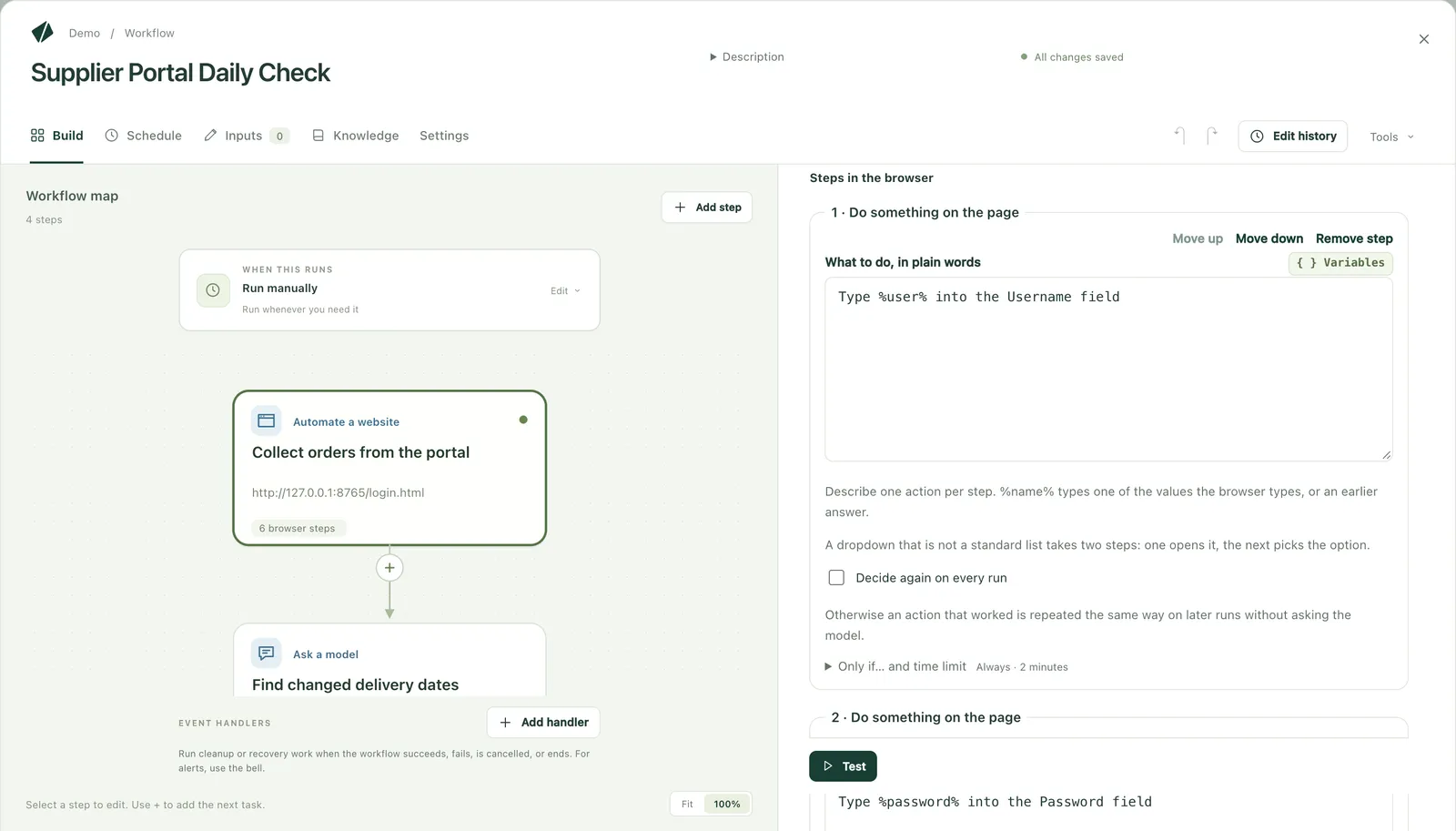
The workflow editor, with web steps written in plain language such as entering the login ID
Actual screen: web steps written in plain language

Builders and fixers both work by conversation

Instead of recording clicks on a screen, you write the steps in the language of the work. When something stops, you find the cause and fix it in the same place.

AI assistant

Build by conversation, fix by conversation

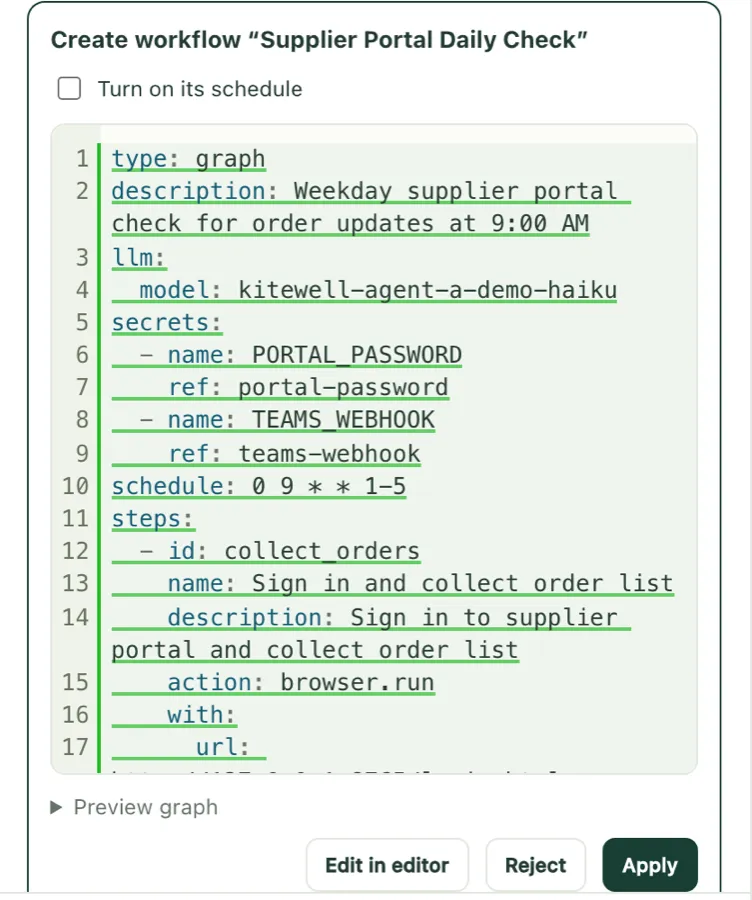
Tell the assistant on the right of the screen what you want, in your own words. It proposes a new workflow or a change, and shows it as a diff with a preview of the flow. A workflow is not saved until you choose Apply.

  • Answers with the open workflow, step, run, and knowledge in mind
  • Discuss a failed run straight from its screen
  • Proposes changes to batch sheets too, and applied changes can be undone
  • Asks you to store a credential without ever seeing its value
  • Cannot delete workflows or change other settings
A workflow the assistant proposed, with Edit in editor, Reject, and Apply buttons
Actual screen: nothing the assistant proposes is saved until you choose Apply

Web and desktop automation

Describe screen work in plain steps

List steps in everyday language, such as open a page, enter a value, collect information, or make sure of something, and AI operates Chrome. Clicks and typing that worked are remembered and repeated the same way on later runs, without the AI; only when the screen changes does the AI relearn them. Desktop apps with no API are operated too, on macOS and Windows: AI reads the screen and uses the mouse and keyboard.

  • Pauses and notifies you when a person must enter something, such as a one-time code
  • Passwords in web and desktop steps are referenced by name, so the AI never sees the value
  • Saves sign-ins and reuses them on later runs
  • Restricts which sites the browser may load
  • A screenshot on failure shows why it stopped
  • When a screen changed and the AI redid an operation, the run record shows it
  • Desktop steps wait while a person is using the mouse or keyboard, and an approval can sit before a save

Kitewell does not solve CAPTCHAs. When the AI reads the screen, the page's visible content, or for desktop steps a screenshot of the whole screen, is sent to the provider of the AI model you choose. Repeating a remembered operation sends nothing.
Resume where it stopped

When it stops, continue from where it stopped

From a failed run, Fix in editor opens the failed step with the run's own inputs. Fix it and choose Save and continue: only the failed step and the ones after it run again, and completed steps keep their results.

  • Test any step on its own, unsaved changes included, under real conditions
  • See the failed step and its output straight from the run list
  • Automatic retries, retry from the failed step, or a new run with the original definition
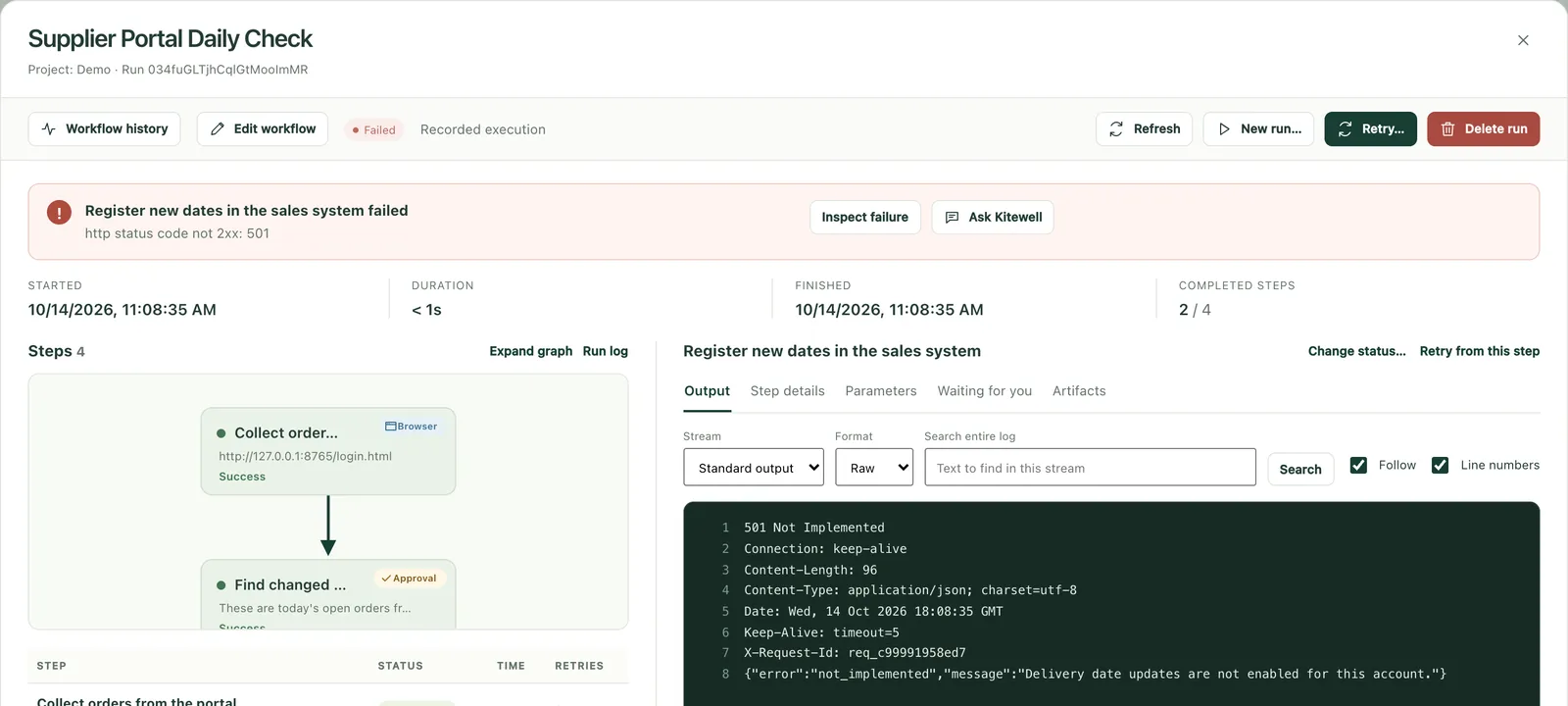
A Kitewell run: recording to the sales system failed, with an Ask the assistant button
Actual screen: the step that stopped, and a button to ask the assistant about it

Decide what AI does and what people check

AI extraction and judgments keep their evidence and confidence, and the run waits for a person wherever a decision is needed.

Approvals and human tasks

People approve the decisions

Add an approval to any step. The approver reviews it, chooses Approve, Send back, or Reject, and enters any values needed. What was decided, and when, is recorded.

  • Human-task steps with input forms
  • Send back re-runs from a chosen step, then waits for approval again
  • Waiting approvals notify Mac, email, Slack, Microsoft Teams, and more
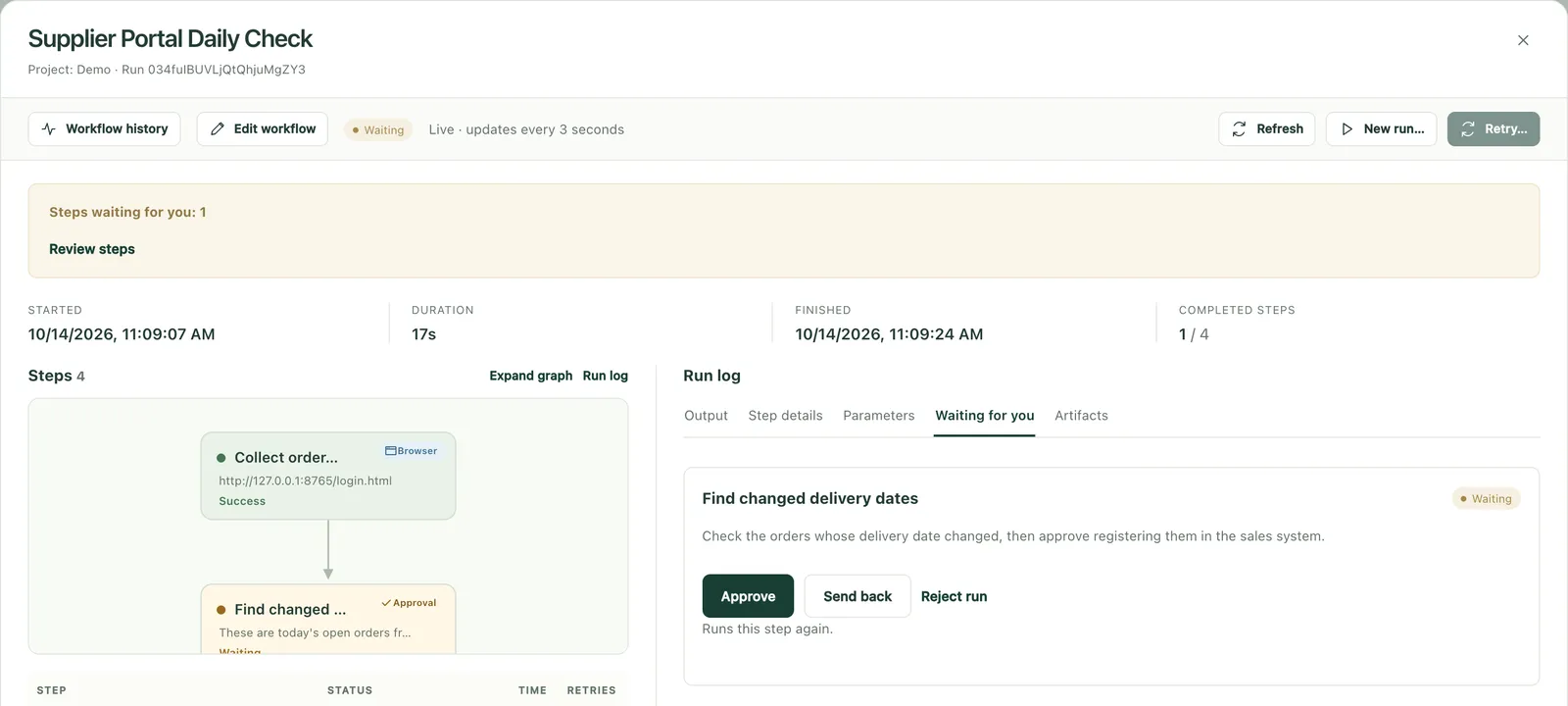
A Kitewell run: a workflow that collected orders from a supplier portal is waiting for the owner's approval
Actual screen: a workflow waiting for approval

Batch sheets

Process a spreadsheet list as is

Open an Excel workbook (.xlsx) or a CSV, or drop it on the window. Title rows, merged headings, subtotals, full-width digits, and Japanese era dates are read as they are, with no reshaping. Say in your own words what should happen for each row, try the first row, then run the rest. Results are written back into each row of your own workbook, and can be undone.

  • Workbooks are read and written as files, never through the screen, so the PC stays free and a locked screen stops nothing
  • Before anything runs, see which rows will run and why the others are left out
  • When a result cannot be matched to its row for certain, that row is not written and the reason is shown
  • A workbook open in Excel is written once it is closed
  • Up to 5,000 rows per sheet; run only new, failed, or changed rows
  • AI judgments show their confidence and the quote behind them, and rows below your threshold go to a person
  • Export inputs, values, and statuses to Excel or CSV
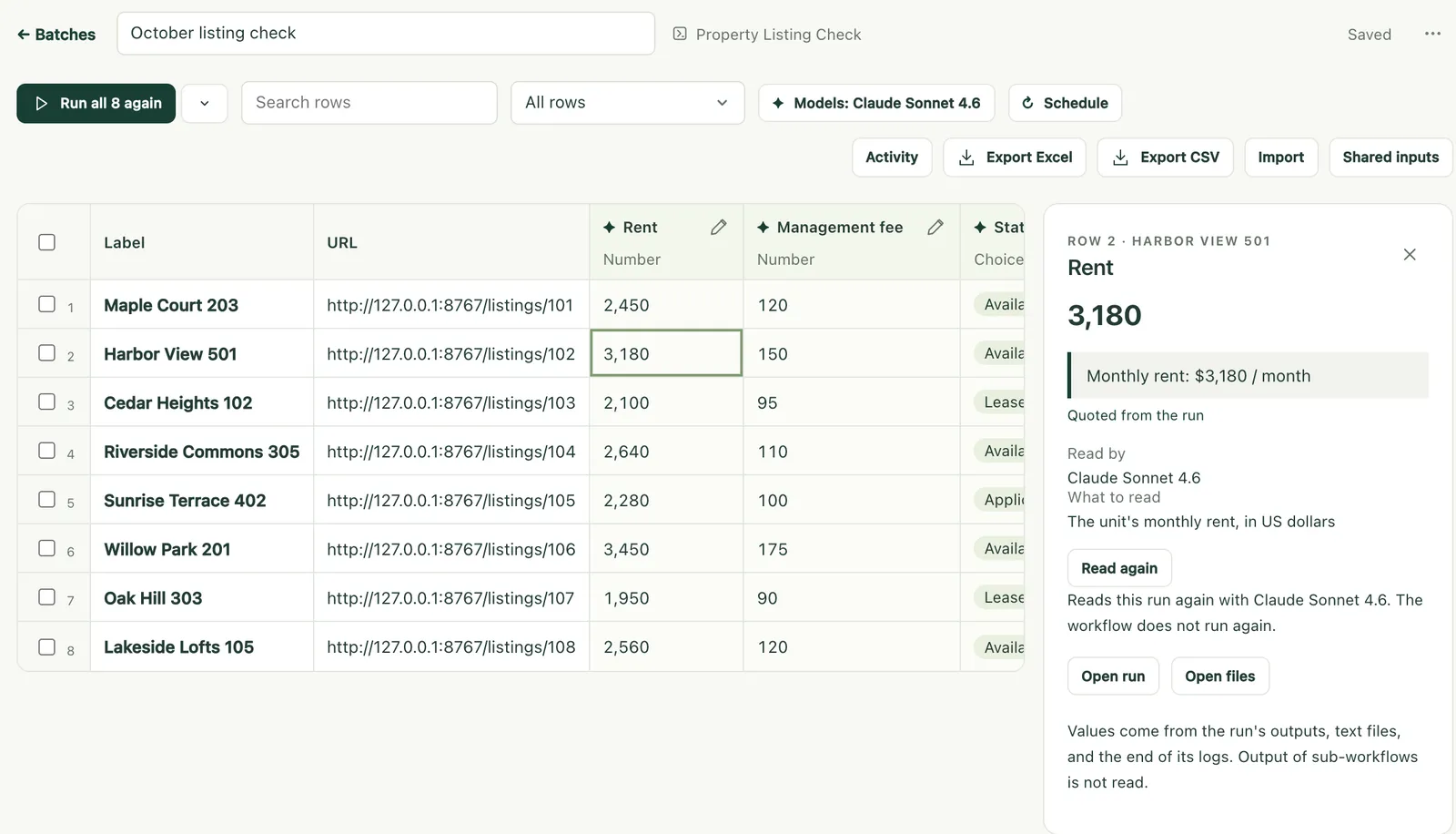
A batch sheet listing rent, fees, and status for eight properties, with the quote behind one rent value
Actual screen: values AI read, with the quote behind each

AI extraction and judgment

Reading, judging, and writing as steps

Ask a model a question, judge material against several criteria, or draft text, all as workflow steps. You choose the model, and API keys are stored encrypted in your environment.

  • Major AI model APIs, plus in-house or local model servers that speak the OpenAI API
  • Run AI agents such as Claude Code or Codex as steps
  • Prompts sent to models are recorded in run history

Built to keep running

Schedules, alerts, history, and connections to your systems: the features that stop automation from turning into robots nobody manages.

Email automation

Automate the work that starts in an inbox

Connect Gmail and Google Workspace, Microsoft 365 and Outlook.com, or any IMAP mailbox on the machine. Workflows find email, have AI read it, create tickets or record entries, and organize what they handled by marking it read or moving it. Sending a reply is a step too.

  • Save each unread invoice's attachment and record its amount
  • Turn support requests into tickets through an API, then mark them read
  • An email that fails stays unread, and the next run retries only that one
  • Mailbox connections and credentials stay on the machine, out of backups and sync

Email text is written by whoever sent it, so the pre-run review warns when it reaches an AI agent that runs commands.

Schedules and webhooks

On a schedule, or when something happens

Run daily, on weekdays, weekly, or on any interval. A run can also start the moment a service that sends webhooks reports something, such as an approval in kintone or a submitted form. Set the time zone and what happens to runs missed while the machine was off.

  • Webhooks reach the machine through Kitewell's relay, so there is no port to open and no tunnel to set up
  • Requests that arrive while the machine is off wait at the relay for up to 7 days, then run oldest first
  • The assistant reads a request that arrived and proposes the steps that use it
  • Queues control how many runs happen at once
  • See upcoming runs in a forecast
  • Scheduled and webhook runs need the machine running Kitewell to be on

Starting from a webhook is part of the paid plans and needs Kitewell signed in to Dagu Cloud.

Alerts

The right news to the right people

Get alerts for failures, repeated failures and recovery, waiting approvals, missed schedules, and runs that take far longer than usual. Route alerts per project or workflow.

  • Mac, email, Slack, Microsoft Teams, PagerDuty, and signed webhooks
  • Delivery history and channel health

Run and change history

Every run and every change, recorded

Each run keeps step-by-step logs, output files, and screenshots. Workflow changes are kept as versions you can compare and restore.

  • Filter run history by workflow, period, and result, and export it as CSV
  • Approval decisions and send-backs are recorded with each run
  • Restore deleted workflows from their history
  • Export a robot ledger to Excel, its columns in the order of the robot management items in FISC's RPA guide, filled in from each workflow's definition and knowledge

APIs and servers

Connect the systems you already have

Combine web operations with APIs, servers, and scripts in the same workflow.

  • Import an OpenAPI specification and configure API calls in a form
  • HTTP requests, SSH to servers, file transfer, and Docker containers
  • Call other workflows, branch on conditions, and repeat over lists
  • Operate Kitewell from AI agents and other systems through MCP and a REST API

Keeps running when people change

Why a workflow was built the way it was, and what broke and how it was fixed, stays in its knowledge, and every fix and page reaches the whole team.

Knowledge

What you teach becomes the team's knowledge

Who uses a workflow's result, why it was built this way, what broke and how it was fixed: what a definition cannot say stays in the knowledge. The assistant writes it down as you work and reads it before it answers, whether it builds a new workflow or fixes one. People edit it too, as a formatted document.

  • Tell the assistant a fact, a rule, or a fix, and it updates the right page, marks the lines it changed, and can undo it at once
  • After reading a web page or a run's output, it shows the change and asks before saving
  • Headings, checklists, and tables, saved as you type, with Japanese input too
  • A failed run shows its workflow's knowledge
  • The robot ledger includes each workflow's knowledge
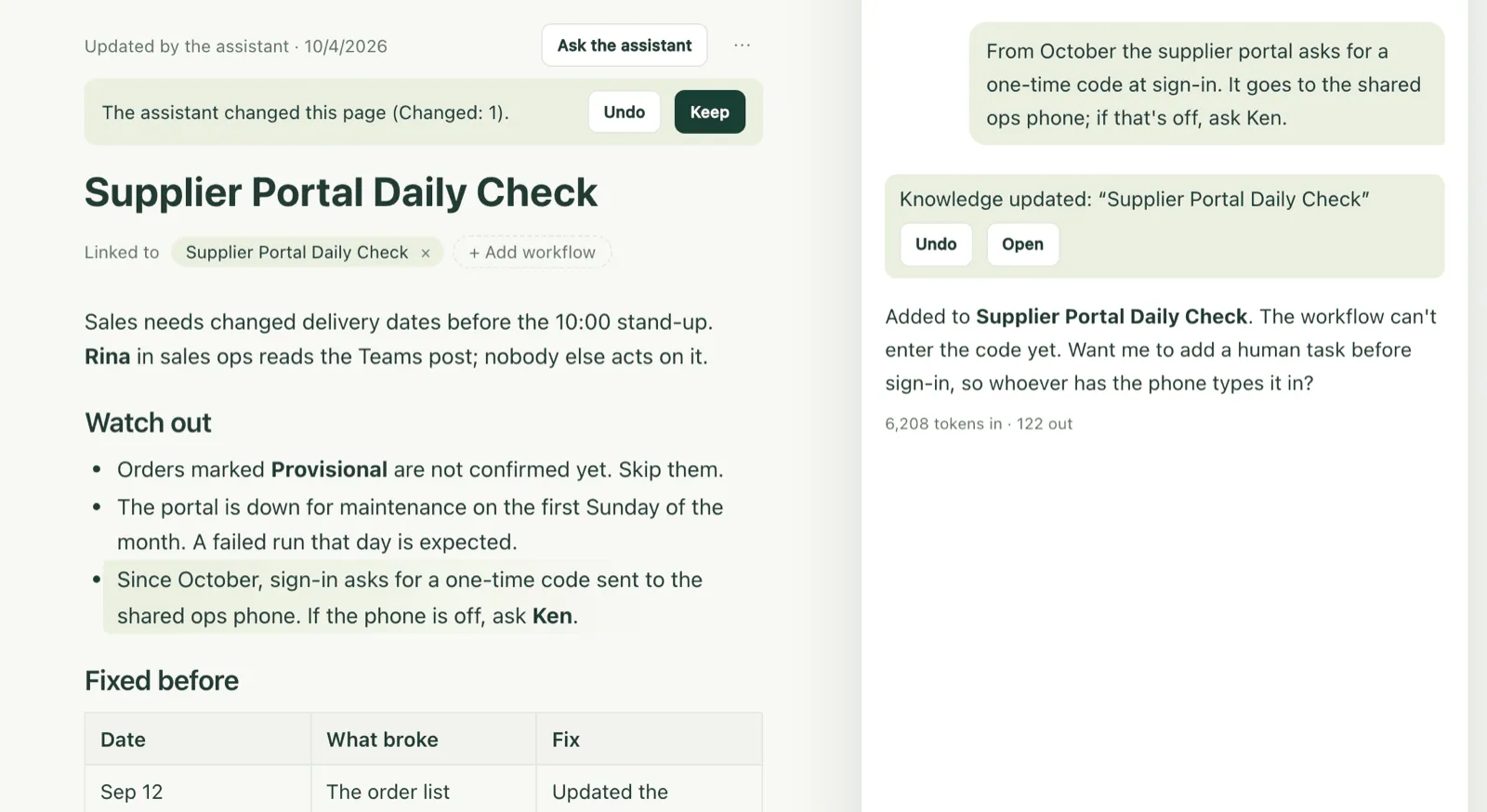
A knowledge page the assistant just updated: the line it added about a one-time code is marked, with Undo and Keep, beside the assistant's receipt and reply
Actual screen: the line the assistant added is marked, and can be undone at once

Team sync

Every fix reaches the whole team

Sync a project through Dagu Cloud and the whole team works from the same workflows and knowledge. Each workflow runs on that person's PC or server with their own sign-ins and credentials, so no shared robot account is needed, and there is no management server to build.

  • A workflow or page someone fixes reaches every device on its own; on the paid plans (Personal and Team), even an unattended device picks up the new version about every 5 minutes
  • Secret values, sign-ins, and workbook locations stay on each device and are never synced
  • Give each person a role on each project: viewer, editor, or admin
  • Two people changing the same workflow are told before one overwrites the other
  • Sync is optional; without it, a project stays on the device

Synced data is stored in Dagu Cloud, in a Google Cloud region in the United States. Enterprise plans can keep sync inside your own environment. Descarty never uses your workflows or knowledge to train AI, and never shares them with other customers.

Try it on your own work

We propose a PoC that tests one to three of your tasks with real business data.